
This is the first blog about my journey towards my AWS Solution Architect Certification. I’m using the Udemy AWS Solutions Architect – Associate Exam course by Ryan Kroonenburg.
My objective in this series is two fold:
- Serve as a personal study guide for certification test
- Give my readers an overview of Amazon Web Service
AWS @ 10K’
Overview of the Services covered in the Architect Certifications (Bolded ones are the core of the test):
- Compute : EC2/Lamba
- Storage: S3
- Databases: Includes Relational DB & Dynamo DB
- Migration & Transfer: how do we get data into & from AWS including snowball
- Network & Content Delivery: Route 53: One of the most fundamental services. Includes things like VPC (Virtual Private Clouds)
- Management & Governance
- Analytics
- Machine Learning
- Security, Identity & Compliance
- Desktop & App Streaming
- AWS Cost Management
AWS Global Infrastructure(as of 2018):
- 19 Regions (Geographical areas with 2 or more Availability Zones )
- 57 Availability Zones (Data Centers with redundant power, networking and connectivity housed in separate facilities. – closely located Data Centers can be considered as 1 Availability Zones)
- 5 more Regions & 15 mores AZ for 2019
- 150 Edge Locations: End points for AWS used to cache content. This include CloudFront & Content Delivery Network (CDN)
Identity Access Management
This is one of the most critical sections of the test because it is a core function of managing a company’s AWS account.
Offers the following features:
- Centralized control of your AWS account
- Shared Access to your AWS account
- Granular Permissions
- Identity Federation (including Active Directory, Facebook, LinkedIn)
- Multi-factor Authentication
- Provides Temporary Access for users/devices and services where necessary
- Password Rotation Policy
- Integrated with many AWS services
- Supports PCI DSS Compliance – compliance is required if you are taking credit card payments
Key Terms:
- Users
- Groups :collection of Users
- Policies: stored in JSON and specific permissions for Users/Groups/Roles
- Roles: are assigned to AWS Resources
IAM Lab
- Create MFA on your Root Account so no one else can log into your root account
- Add Users
- Create Groups: Created Developers
- Add Policies: Added Admin Access (you can look at the JSOn structure of a policy in the Policies Sections of IAM by clicking the down arrow for a policy.
- Set the Password Policy
- Go back and manage a users credentials under the users sections
- Create a Role: Allows 1 AWS Service to communicate with another service – will use in EC2 section
- Select the EC2 Service
- Attach Permissions: Search for S3, Assign S3FullService
Exam Tips
- IAM is Universal but does not apply to regions
- Root Account is always the account used to set up the AWS account – It has Admin Access
- New Users have no Permissions when first created
- New Users are assigned Access Key ID & Secret Access Keys when first created
- These are not the same as passwords and cannot be used to access the console. They can be used to access AWS via API’s and Command line. However
- You only get to view them once. If you lose them you must regenerate them
- Always setup Multi-Factor Authentication on your root account
- Can create and customize password rotation policies
Billing Alarms Lab
- Go to AWS Console and select that N Virgina Region
- Go to Billing and Click Preferences
- Select your Billing Preference
- Then Go back to the Console and Select Cloudwatch under Management and Governance
- Select Billing Under Alarms
- Select the Amount for which you want to get alerts for
- Select email for Alerts
- Confirmation email will be sent out to confirm the alarm
S3 101
- What is S3: Simple Storage Service
- Safe place to store your files
- Object Based Storage – allows you to upload files
- Data is Spread across multiple servers and data centers
- Files can be 0bytes to 5TB
- Unlimited Storage
- Not suitable for installing an Operating System on
- Files are stored in Buckets
- S3 is a universal names Space
- bucket names must be unique and assigned a url
- When you upload a file to S3 you will get an HTTP 200 code if the upload is successful Popular Exam Question
- Objects consists of the the follow
- The key (name of Objects)
- Value (the data – made up of a sequence of data
- Version ID’s (S3 allows versioning)
- Metadata
- SubResources
- Access Controls Lists
- Torrents
How does Data Consistency work for S3
- Read after Write Consistency for PUTS of new Objects (Available immediately)
- Eventual Consistency for Overwrite Puts and Deletes (Can take some Time to Propogate)
What are the S3 Guarantees
- Built for 99.99% availability for the S3 platform
- Amazon Guarantees 99.9% availability
- Amazon guarantees 99.9999999% durability for S3 information (remember 11x9s)
S3 Features
- Tiered Storage
- Lifecycle Management (move files among storage tiers )
- Versioning
- Encryption
- MFA for deletes
- Secure data via Access COntrol Lists & bucket Policies
S3 Storage Classes **** Critical for Exam***
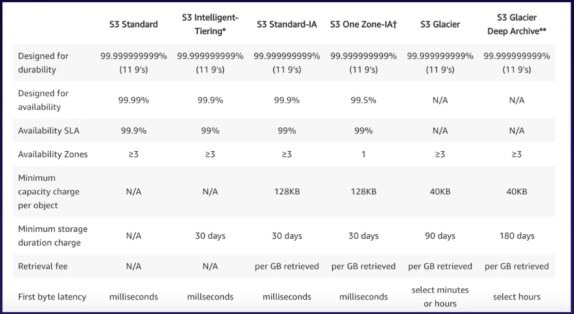
- S3 Standard
This is the one with ninety nine point nine nine per cent availability and 11 nines durability and stored redundant across multiple devices in multiple facilities and is designed to sustain the loss of two facilities concurrently
- S3 – IA (Infrequently Accessed) For data that has access less frequently but requires rapid access when you need it so you get a lowest storage fee then S3 but you are charged a retrieval fee
-
- S3 One Zone – IA (Reduced Redundancy Storage – RRS) For where you want a lower-cost option for infrequently accessed data, but do not require the multiple data availability zones
-
- S3 – Intelligent Tier – uses ML to monitor how frequently your data is accessed and intelligently swaps the data around for you among the tiers
-
- S3 Glacier – Secure – Durable and low cost storage class for data archiving. You can reliably store any amount of data at costs that are competitive with or cheaper then on premise Solutions. Retrieval times are configurable from minutes to hours
- S3 Glacier Deep Archive – Amazon S3’s lowest cost storage class where retrieval time of 12 hours is acceptable
How are you billed in S3
- Storage
- Requests
- Storage Management Pricings (tiers)
- Data Transfer Pricing
- Transfer Acceleration – Fast Easy transfer over long distances between your end users and an S3 Bucket – takes advantage of Amazons CloudFront global edge locations routing data over an optimized network path
- Cross Region Replication Pricing (auto Replications)
READ THROUGH the S3 FAQs
Creating an S3 Bucket Lab
- Navigate to S3 & create bucket – remember names need to be unique
- upload file – don’t set any permissions
- back at the Bucket directory page – select one of the files uploaded – gives you info on the right about the file – one parameters is the object url – if you click on it you will not be able to access becuase no permissions have been set up
- go back to S3 folder – select the bucket and click Edit Public Settings – all options should be unchecked – click save then confirm. Message for the bucket should now say that “objects can be public”
- Click on actions in the menu above – review options – click on make public
- go back and select one of the files and click on properties in the pop up – you can click on Storage Class for example this example is done on a object level But you can also do it at a Bucket Level
Exam Tips
- Buckets are universla name space
- Upload an object to S3 you get a HTTP200 code
- Control Access to buckets using either a bucket ACL or a Bucket Policy
Security & Encryptions
- By Deefault all buckets are created as PRIVATE. You can set up access controls to your buckets using:
- Bucket Policies
- Access Control Lists this can be done at the individual object in the bucket
- S3 buckets can be configured to create access logs which log all requests to your bucket. This can be sent to another bucket or another account
- Encryption in Transit is achieved by setting up SSL/TLS
- Encryption At Rest (Server Side) is achieved by
- S3 Managed Keys – SSE-S3 Amazon manages all of the keys
- AWS Key Management Service, Managed Keys -SSE-KMS both you and amazon manage the keys
- Server Side Encryption with Customer provided Keys – SSE-C
- Can be set at the object level by click on object and changing encryption in the pop up to either AES-256 or AWS-KMS
Versioning
- Stores all versions of an Object (including all writes and even if you delete an object)
- Great Backup tool
- Once enabled – versions cannot be disabled – only suspended
- Integrates with Lifecyle Rules (next Lecture)
- Comes with MFA Delete capability uses multi-factor authentication, can be used to provide an additional layer of security
Lab
- create a new bucket with defaults
- in the bucket list click new bucket and then Edit Public Access Setting menu and make sure all boxes are uncheck – click save to make the bucket public
- Now enable Versioning
- Click on new bucket
- in the menu above select Properties
- Then click versioning
- you and only enable or suspend – Click enable of suspend
- Now upload a file to the bucket
- Make the file Public by clicking Make Public from the Actions Menu
- no modify the file and reupload it
- by re-uploading it the file is no longer public you’ll need to re-enable public permissions
- You can view the versions by going back into the bucket and selecting Show Versions
- Appreciate the versioning eats up disk
- No Hide versioning and Delete the file
- Bucket looks empty – but if you show versioning – a 4th entry will be there showing that the delete occurred.
- You can restore the delete by deleting the file with the delete version marker
- You can then delete version 3 by deleting with the SHOW option on
Exam Tips – intro of versioning
Lifecycle Management Lab
Allows you to automate the management of your data across different tiers of storage and can be version aware
- Navigate to your versioning bucket
- Click management Tab
- Add A Lifecycle rule
- Specify the name of your rule and any tags (Tags allow you classify your objects and have lifecycle rules applicable to only those objects)
- Next specify whether you want the rule to apply to just the current versions, prior version or both – selected both
- Specify transitions for Current – Select transition to Standard-IA for 30 days & Transition to Glacier after 60 days
- Do the same for Prior versions
- Now you can set up expiration for both current and Prior Versions
- You can also Clean up any multi-part uploads after x number of days
Cross Region Replication
- Create a new bucket
- Click into the bucket – the click the management tab
- Click on Replication – you get a message the this bucket does not have versioning enabled and you need to enable it – click on enable versioning
- Go back to the bucket we crated for versioning where we’ve got 2 versions of an object – do you think both versions will be replicated?
- Click replication
- Can choose to replicate the entire bucket or have special rules for tags or prefixes – click next
- Now you can replicate to an existing bucket in thios account or another account or create a new bucket. Create a new Bucket
- Select a new region (has to be different then current)
- can specify a new data tier class or specify new ownership
- Specify the role that will run the replication – clicking create new role will automatically create a new IAM role to run the replication
- Name the replication rule and save
- If you go back to the S3 bucket – you’ll see that the new replication bucket is created but it is empty. AWS does not replicate anything created prior to the time of replication creation – you would need to move/upload that in manually
- Now you go to your replication bucket you’ll see that the file was automatically replicated – I had to sync for the replication to take place
- if you go into the main bucket and delete a version – you’ll see that the deletion was not replicated this is to protect from accidental deletions
- Replication will not replicate deletes
Exam Tips
- Versioning must be enabled on both source and Target buckets
- Regions must be unique
- Files in an existing bucket are not replicated automatically (only new)
- Delete markers are not Replicated
- Deleting individual version or delete markers will not be replicated
Transfer Acceleration
- Utilises the CloudFront Edge Network to accelerate your uploads to S3. Instead of uploading directly to your S3 bucket, you can use a distinct URL to upload directly to an edge location which will then transfer that file to S3. You will get a distinct URL to upload to:
Cloudfront Overview
- A content delivery network (CDN) is a system of distributed servers (network) that deliver webpages and other web content to a user based on the geographic locations of the user, the origin of the webpage and a content delivery server.
Key Terminology
- Edge Location – the location where the content will be cached. Separate from an AWS Region or AZ (availability Zone)
- Edge locations are not just READ only – you can write to them too (put objects on the them)
- Objects are cached for the life of the TTL (Time to Live)
- You can clear cached objects but you will be charged for that***
- Origin – This is the origin of the files that the CDN will distribute. This can be an S3 bucket, an EC2 instance, an Elastic Load Balancer or Route 53
- Distribution – this is the name of the given CDN which consists of a collection of Edge Locations
- Can be used to deliver your entire website including dynamic, statis, streamin and interactive content using a gloabl network of edge locations. Requests for the content are automatically routed to the nearest edge location, so content is delivered with the best possible performance
- Web Distribution- typically used for Websites
- RTMP – Used for Media Streaming
Cloudfront Distribution Lab
- Cloudfront is under Networking & Content Delivery
- Create a Distributions
- Web
- RTMP – used for media streaming
- Select
- Origin – this is the S3 bucket
- Origin Path – if you had a directory in the bucket that you wanted distributed/cached
- Origin ID
- Can Restrict Bucket Access – allows you to only restrict access through CLoudfront urls as opposed to AWS S3 urls
- Can set the Time to LIve (TTL) thresholds
- You can Restrict Viewer Access (Use Signed URLs or Signed Cookies) for example Netflix might only want people who paid for the access can access it
- Once Created (takes about an hour to create) you can go back into cloudfront and change your configurations
- Can also clear or invalidate your distribution(cache)
Snowball
- Petabyte-scale data transport solution that uses secure appliances (Large DIsks) to transfer large amounts of data into AWS. Using snowball address common challenges with large-scale data transfers including high network costs, long transfer times and security concerns. Transferring data with snowball is simple fast secure and can be as little as one-fifth the cost of high-speed internet
- Uses either 50 TB or 80 TB disks
- multiple layers of security
- tamper resistant enclosures,
- 256 encryption
- and an industry-standard Trusted Platform Module (TPM) designed to ensure both security and a full chain-of custody of your data.
- Once the data transfer job has been processed and verified, AWS performs a software erasure of the Snowball appliance
- AWS Snowball Edge is a 100TB data transfer devide with on-board storage and compuet capabilities. You can use Snowball Edge to move large amounts of data into and out of AWS, as a temporary storage tier for large local datasets, or to support local workloads in remote or offline locations. (e.g. Airline using to Snowball Edge on an actually plane to perform processing and lambda functions in flight)
- Snowball Edge connects to your existing applications and infrastructure using standard storage interfaces, streamlining the data transfer process and minimizing setup and integration. Snowball Edge can cluster together to form a local storage tier and process your data on-premises, helping ensure your applications continue to run even when they are not able to access the cloud.
- Snowmobile – is an Exabyte-calse data transfer service used to move extremely large amounts of data to AWS. You can transfer up to 100pb per snowmobile, a 45 foot long ruggedized shipping contain. Snowmobile makes it easy to move massive volumes of data to the cloud. It’s fast, secure and cost effective
- Can import/export into/out of S3
Storage Gateway
- Service that connects an on-premise software appliance with cloud-based storage to provide seamless and secure integration between and organization’s on-premise IT environment and AWS’s storage infrastructure. The Service enables you to Securely store data to the aws cloud sor scalable and cost effective storage
 Recipes4Data